

Prerequisites #
Before you begin, make sure you have the following:
- OpenClaw installed and running
- A WoAiToken account with credits — new.woaitoken.com
- Your NewAPI API Key (get it in Step 1)
Step 1 — Get Your API Key #
1. Open the console
Visit new.woaitoken.com/dashboard/overview and sign in.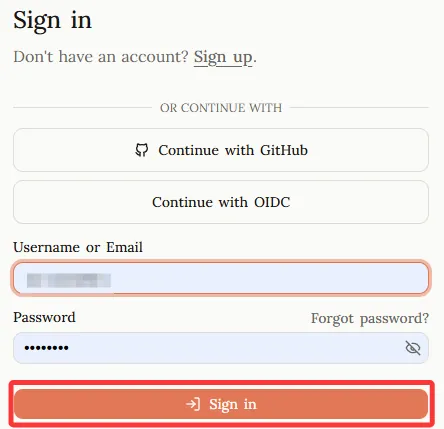
2. Create a token
Go to API Keys → Add Token. Give it a name (e.g. “Claude Code”), set no expiration, then click Submit.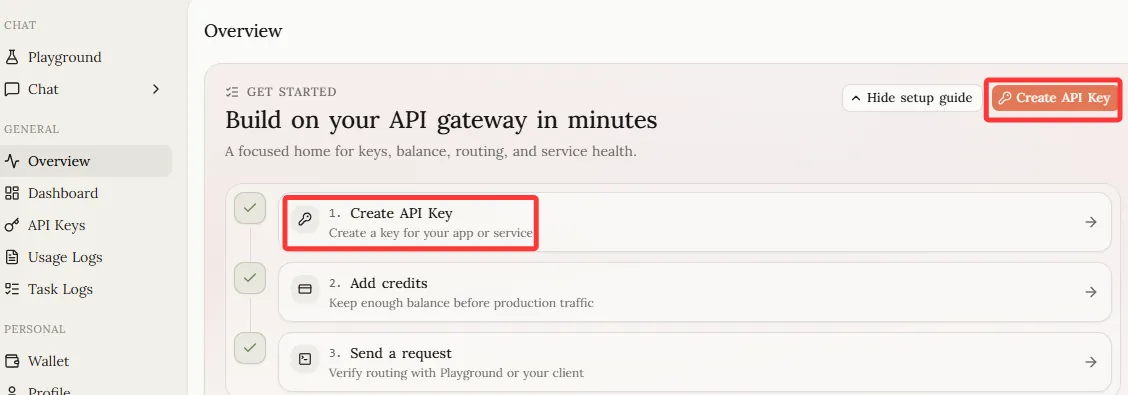
3. Copy the key
Copy the generated key — it starts with sk-..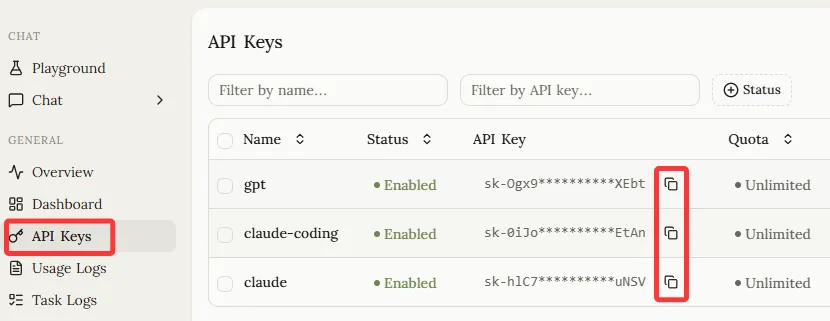
Step 2 — Configure OpenClaw #
NewAPI provides a fully OpenAI-compatible endpoint. Configure OpenClaw with the following parameters:
| Field | Value |
|---|---|
| API Base URL | https://new.woaitoken.com/v1 |
| API Key | sk-your-key-here |
| Model | (select from available models) |
1. Check OpenClaw status
Run the following command to get the config file path:
openclaw gateway status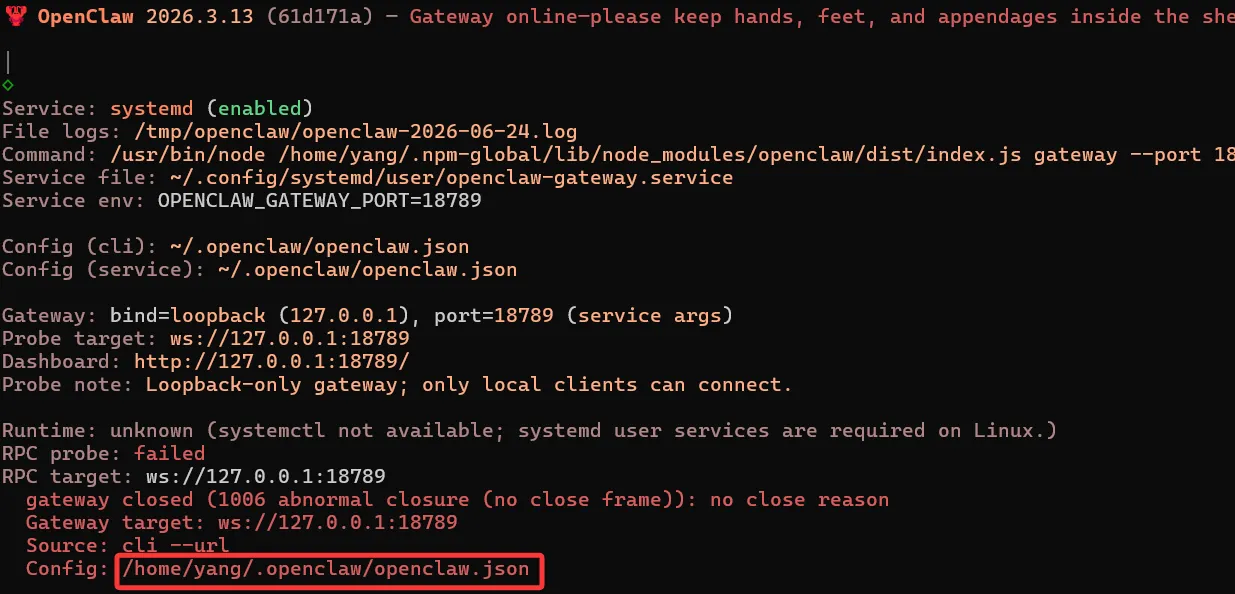
2. Edit the config file
Open openclaw.json and add the agent and model configuration:
{
  "api": "openai-completions",
  "apiKey": "your-tokens",
  "baseUrl": "https://new.woaitoken.com/v1",
  "models": "gpt-5.5"
}
⚠️ Note: Do not modify the
apiandbaseUrlfields.
vi /home/yang/.openclaw/openclaw.json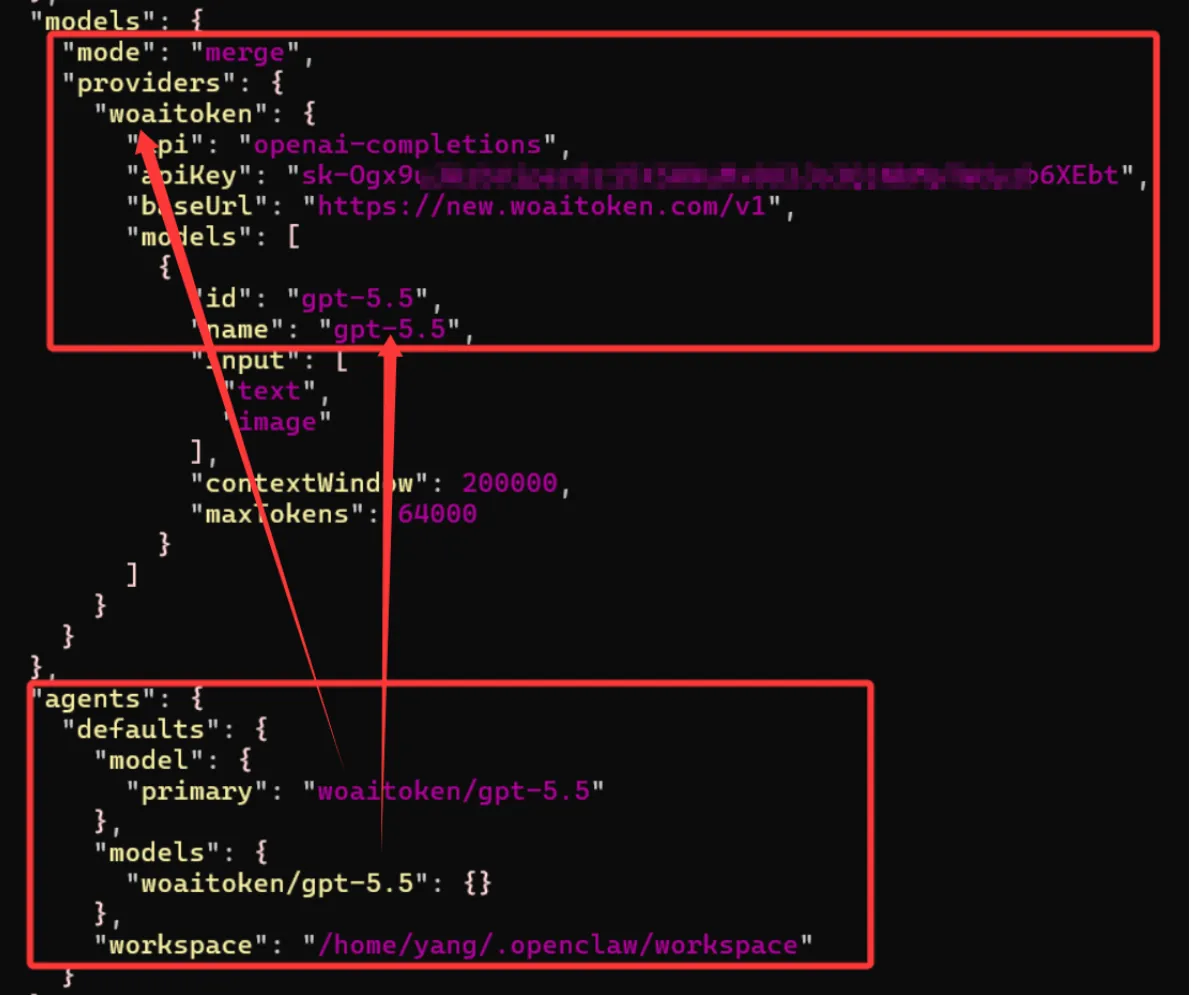
3. Start the gateway
openclaw gateway run
Step 3 — Verify #
Open a new conversation in OpenClaw and send a test message (e.g. “Hello”). A response confirms the connection is working ✅.
Access the local address: http://127.0.0.1:18789/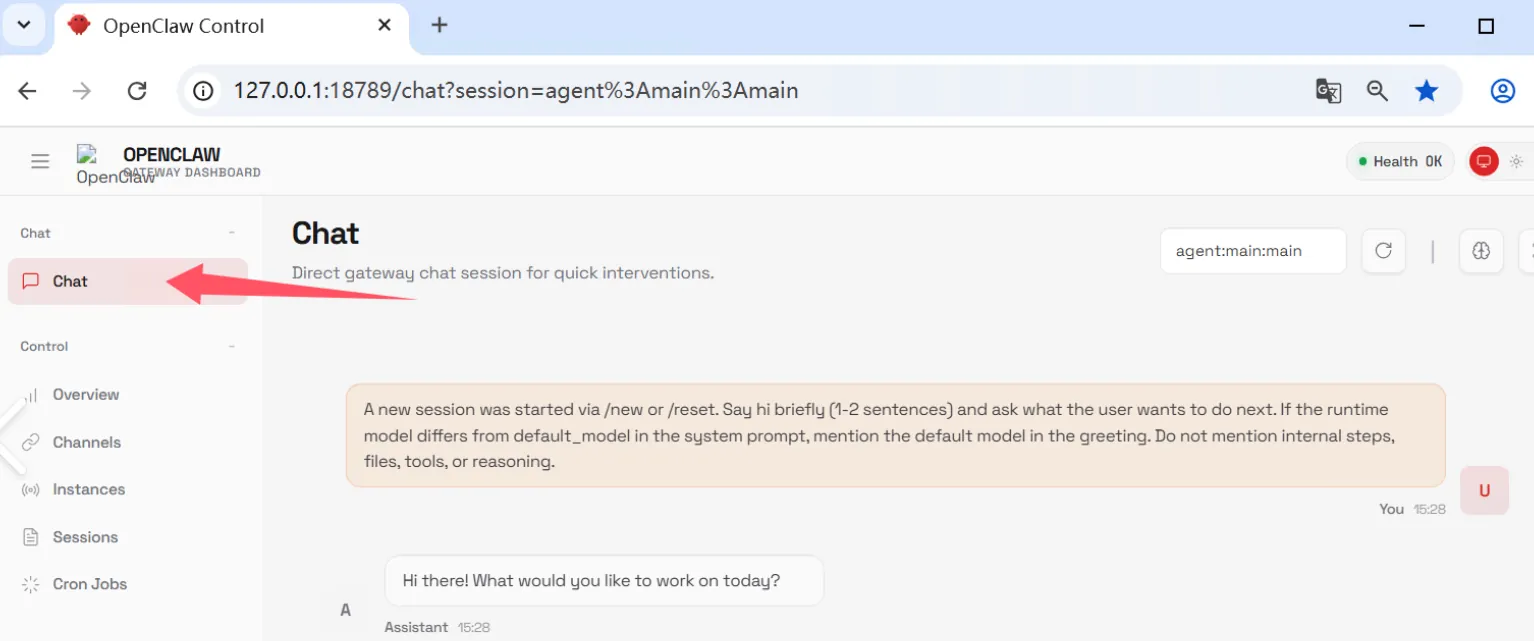
Troubleshooting #
| Issue | Solution |
|---|---|
| No response / connection error | Confirm the Base URL is https://new.woaitoken.com/v1 (with /v1) |
| Authentication failed | Check your API key is pasted correctly with no leading or trailing spaces |
| 429 Too Many Requests | Your credits are used up. Top up at woaitoken.com |


